


AI-Powered
AI digital asset management: find people, not just files
A dedicated People view lets you browse your library by who's in it, and AI-powered facial recognition automatically groups photos by person, so you can find every shot of someone without tagging a single image by hand.
Most digital asset management is organized around where a file lives — which folder, which project, which shoot. PandaDAM adds a second axis: who's in it. This is what we mean by AI digital asset management — two connected pieces working together. A dedicated People view lets anyone browse and search the library by person, and underneath it, AI-powered facial recognition detects faces and groups photos automatically as they're uploaded. Nobody has to click through a folder of five hundred images to pull every photo of one client, one team member, or one recurring subject.
It's also one of the parts of PandaDAM we're most careful to describe precisely, because it's the one place in the product where “AI” is doing real, specific work today — face detection and grouping — and where it's tempting to imply more than that. Below is exactly how it works, what's live today, and what's still on the roadmap.
None of this replaces the folder and collection structure the rest of the library is built on — it runs alongside it. A photo still lives in whatever folder it was uploaded to; facial recognition simply adds a second, independent way to browse the same asset, organized by who's in it instead of where it's filed.
A dedicated People view
Browse and search your library by person, not just by folder — every enrolled person gets their own page of matching photos.
Automatic face grouping
Facial recognition runs on upload and automatically groups photos by the people in them — no manual tagging required.
One-click enrollment
Enroll a person in one click so future uploads are matched to them automatically.
Encrypted at rest
Face data is encrypted at rest, kept separate from the rest of your asset metadata.
Fully opt-in, per workspace
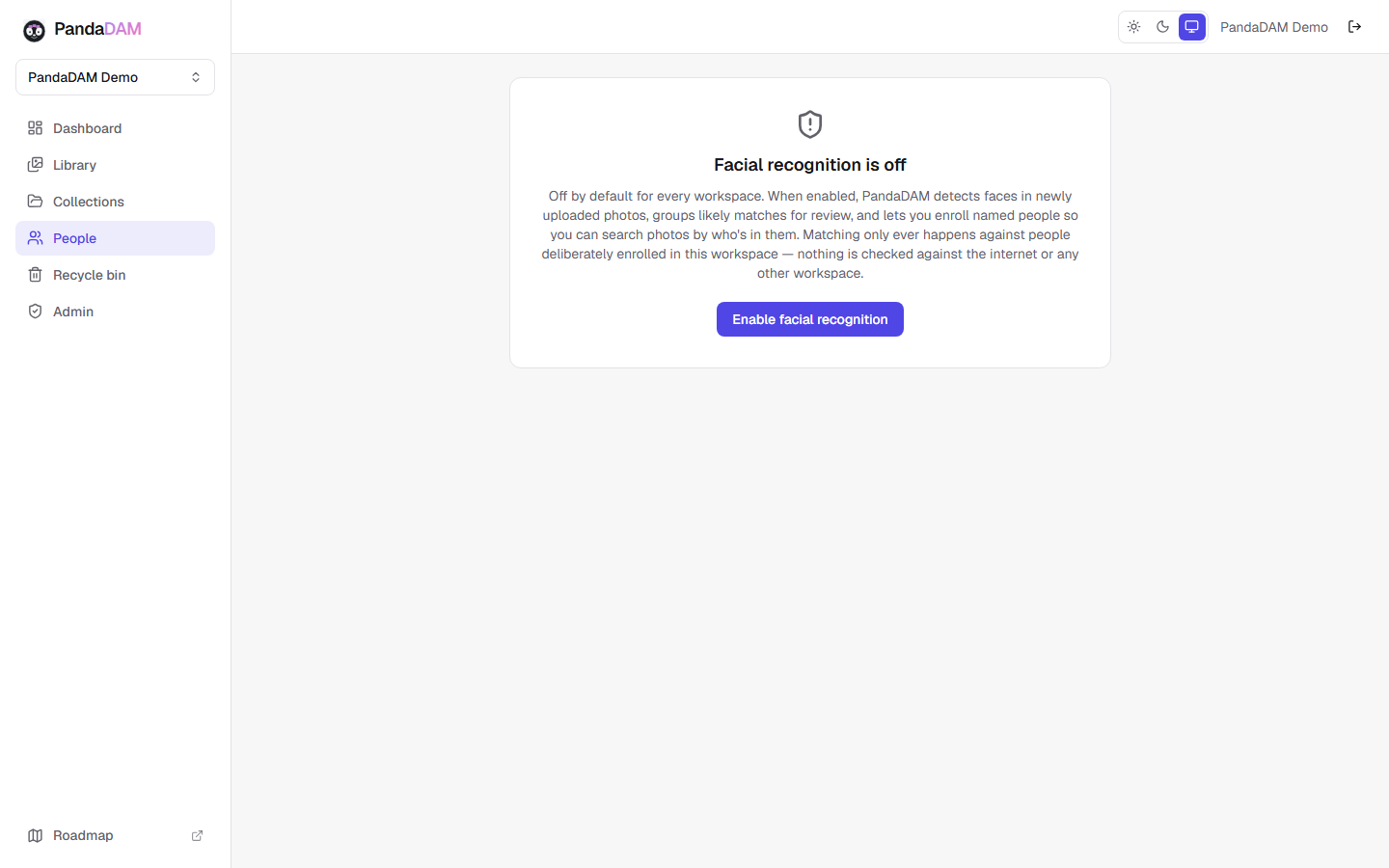
Facial recognition is off by default and can be toggled on or off for each workspace independently.
How AI-powered media management finds the same person across your library
When facial recognition is turned on for a workspace, every uploaded photo is analyzed to detect faces present in it. Rather than comparing raw images to each other, the system generates a mathematical representation — an embedding — of each detected face, and compares that embedding against the embeddings of people already enrolled in that same workspace. When a close enough match is found, the new photo is automatically added to that person's group in the People view.
That comparison only ever happens within a single workspace. A face detected in one workspace is never checked against another workspace, and it's never checked against anything outside PandaDAM — there's no internet-wide lookup, no external database, no cross-customer matching. The whole process is scoped to the people your team has explicitly enrolled in your own library.
Enrollment: one click, then it works automatically
Enrolling a person is a one-time action — select the person once, from a photo they already appear in, and PandaDAM creates their entry in the People view. From that point forward, every new upload is checked against enrolled people automatically, and matching photos are added to that person's group without anyone having to tag the image by hand. For a photographer with repeat clients, a company tracking recurring team members across events, or anyone building a library that spans years, this turns “find every photo of this person” from a manual search into something that's already done by the time you go looking.
The People view itself is the browsing surface for all of this: instead of navigating by folder, you navigate by person, and each enrolled person has their own page showing every photo they've been matched in.
Privacy by design: opt-in, encrypted, and isolated
Facial recognition is off by default. It has to be turned on deliberately for a given workspace, and it can be turned off again just as deliberately — the setting is per workspace, not a global switch. Workspaces that don't need or want this capability simply never generate any face data in the first place.
When it is enabled, face data is encrypted at rest and kept separate from the rest of an asset's metadata — it isn't bundled in with descriptions, keywords, or EXIF data. And as covered above, matching is strictly workspace-scoped: face embeddings from one workspace are never compared against another workspace, and nothing is checked against any source outside PandaDAM. This is deliberately a narrower, more conservative design than a general-purpose facial recognition photo software product might use — it's built to solve one problem (find photos of people your team already knows) rather than to identify unknown faces from anywhere.
What's real AI today, and what's still roadmap
It's worth being explicit about the boundary here, because it's easy to blur. Face detection and person-grouping are real, shipped AI functionality — they run on every upload in a workspace with facial recognition enabled, today. What PandaDAM does not do today is general AI photo organization software in the broader sense: automatically describing a scene, generating keywords for a landscape or a product shot, or auto-captioning content that doesn't contain a person. Automatic image tagging software of that kind — tagging based on objects, scenes, or general content rather than faces — is on our roadmap and in active development, not something available in the product today.
We'd rather draw that line clearly than let “AI-powered” imply more than what actually runs. If you're evaluating PandaDAM specifically for automatic content tagging beyond people, that capability isn't here yet — check the roadmap for where it stands.
Who benefits most from facial recognition photo software
The workspaces that get the most out of this feature tend to share one trait: the same people show up repeatedly across a growing library. A photographer with long-term clients, a company tracking the same employees across years of internal photography, an events business photographing repeat attendees, or a team producing content with recurring collaborators — all of these are cases where manually tagging every photo by hand simply doesn't scale, but automatically grouping by detected face does.
It's less useful, by design, for libraries with no recurring subjects — a product photography archive, for instance, has no people to enroll in the first place. That's fine. Facial recognition is one feature among several, meant to be turned on for the workspaces where it solves a real problem, and left off everywhere else.
The People view as a browsing surface, not just a search result
The People view isn't just a search filter bolted onto the library — it's a standalone way to browse, with its own page per enrolled person. Opening someone's page shows every photo they've been automatically matched in, across every folder they happen to be filed under. For anyone trying to answer “what do we have of this person” without already knowing which shoots or projects to check, that's a materially faster path than searching folder by folder.
Because the underlying photo still belongs to its original folder and keeps its own metadata, the People view doesn't fragment the library into two competing structures. It's an additional lens on the same set of files, not a second copy of them.
Turning it on: what changes for a workspace
Enabling facial recognition for a workspace doesn't retroactively change how existing assets are stored — it starts running on new uploads and enrollment from that point forward. An Admin can turn the setting on or off at the workspace level, independent of every other workspace the same organization might have. A photography studio serving both individual portrait clients and corporate clients who'd rather not have facial recognition running on their photos, for instance, can enable it for one workspace and leave it off for another.
Turning the setting off stops new matching from happening; it doesn't require choosing between “all workspaces” or “none.” That per-workspace control is deliberate, since the right answer to “should this be on” genuinely depends on the kind of content and clients each workspace holds.
How facial recognition connects to sharing
Once a person is enrolled and their photos are grouped, that group becomes something you can share directly — a share link can be scoped to a people group the same way it can be scoped to a folder or a collection. That means handing someone every photo they personally appear in, from an event or a long-running project, doesn't require first manually building a collection of those photos. The grouping facial recognition already did becomes the share scope itself.
As with any other share link, that people-group link can carry an optional password and expiration date, and the recipient doesn't need an account to view it — the same sharing rules apply whether the link points at a folder, a collection, or a group of photos organized by person.
What makes this different from general facial recognition software
General-purpose facial recognition tools are often built to identify unknown people — matching a face against a broad database to figure out who someone is. PandaDAM does the opposite, by design: it only ever compares faces against people your own team has explicitly enrolled, inside your own workspace. There's no attempt to identify a stranger, no lookup against public or third-party data, and no comparison against any other customer's workspace. The entire feature exists to answer one narrow, useful question — “where else does this person, whom we already know, appear in our own library” — and nothing broader than that.
That narrower scope is also why the feature can be opt-in and off by default without losing most of its value. A workspace that never enables it simply never generates face data in the first place, and a workspace that does enable it is only ever working with people its own team chose to enroll.
Getting started with People and facial recognition
Turning the feature on is an Admin-level decision for a given workspace. Once it's enabled, the practical next step is enrolling the people you expect to appear repeatedly — a handful of recurring clients, team members, or collaborators is usually enough to start seeing the value, since every upload from that point forward is checked against enrolled people automatically. Enrollment happens person by person, from a photo they already appear in, and the People view fills in around whoever you've enrolled so far.
From there, the feature mostly runs in the background. There's no ongoing maintenance step required to keep matching working — once someone is enrolled, every future upload is checked against them automatically, and the People view stays current without anyone revisiting the setup. The only manual step is enrolling a new person the first time they show up regularly enough to be worth tracking.
Frequently asked questions
Is facial recognition on by default?
No. It's off by default and must be turned on for a specific workspace. It can also be turned off again at any time, independently of any other workspace.
Does PandaDAM check faces against the internet or other customers?
No. Matching only happens against people enrolled in the same workspace. There's no external lookup and no comparison across workspaces or customers.
How is face data stored?
Face data is encrypted at rest and kept separate from an asset's other metadata.
Can PandaDAM automatically tag what's in a photo, like objects or scenes?
Not yet. Automatic tagging of general photo content is in active development and tracked on the roadmap. Today, the AI capability that ships is face detection and person-grouping.
How do I enroll a person?
Select the person once from a photo they already appear in. From then on, new uploads are checked against enrolled people automatically, and matches are added to that person's group in the People view.
Can I turn facial recognition on for one workspace and off for another?
Yes. The setting is controlled per workspace, so an organization with multiple workspaces can enable it where it's useful and leave it off elsewhere.
Does turning facial recognition on affect photos already in the library?
Enabling it starts detection and matching going forward from enrollment; it doesn't change how existing assets are stored on its own. Matching depends on people being enrolled first.
See the rest of the platform
Facial recognition is one of several ways PandaDAM helps you find what you're looking for.