
Media Library
Digital asset library software that keeps every team organized
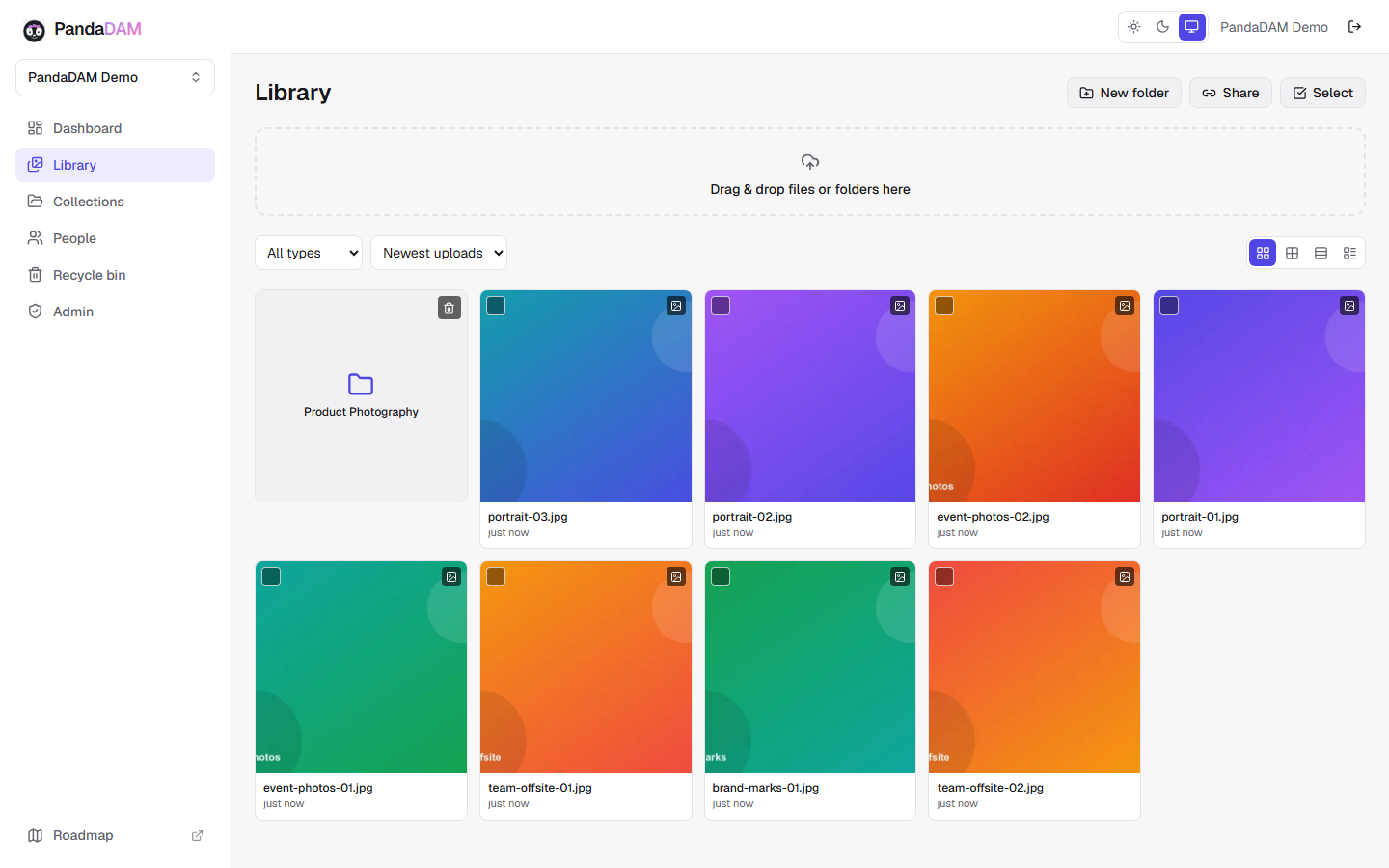
Folders and collections for structure, fast filters for finding things, and a recycle bin so nothing disappears by accident.
PandaDAM is digital asset library software built for teams that are done losing track of their own files. Instead of photos and video scattered across laptops, email threads, and a handful of shared drives, a digital asset library gives everyone on the team one place to look — with a folder structure that mirrors how the team actually works, filters that narrow a library down in seconds, and safeguards that make it hard to lose a file by accident. It's the difference between a library and a pile: both can hold the same files, but only one of them is usable six months and ten thousand uploads later.
What follows is a detailed look at how PandaDAM's media library software actually works — not a marketing summary, but the real mechanics of folders, views, search, duplicate detection, and the recycle bin, so you know exactly what you're getting before you bring a team's assets into it.
Folders and collections
Organize assets into a folder structure, and build cross-folder collections for campaigns, shoots, or projects.
Grid, compact, masonry, and list views
Switch between four view modes depending on whether you're scanning thumbnails or reviewing details.
Filters and search
Search by filename, description, caption, or keywords, and filter by file type and folder to find the right asset fast.
Favorites and ratings
Mark assets as favorites or rate them to surface the best files without leaving your folder structure.
Bulk actions and drag-and-drop
Select multiple assets to move, edit, or delete at once, or drag files straight into a folder instead of handling them one at a time.
SHA-256 duplicate detection
Every upload is checked against a SHA-256 hash, so re-uploading the same file doesn't create a duplicate copy or waste storage.
Recycle bin safety net
Every delete path — single asset, bulk selection, or folder — lands in the recycle bin first. Nothing is one click away from permanent deletion.
A cloud-based asset library built around folders and collections
Every workspace in PandaDAM starts with a folder structure — the same basic organizing principle most teams already understand, just applied consistently across the whole library instead of being left to whoever uploaded a file last. Folders can be nested to match however deep your organization needs to go: by year, then by shoot, then by deliverable; or by client, then by project, then by asset type. There's no documented limit on how deep that nesting can go, so teams aren't forced to flatten a structure that took years to develop just to fit a tool's assumptions.
Collections sit on top of that folder structure rather than replacing it. A collection can pull assets from multiple folders into a single view — useful when a campaign, a pitch deck, or a client review needs files that live in different parts of the library without physically moving anything. The underlying file stays exactly where it was filed; the collection is just another way to look at it. This is one of the core ideas behind a centralized media library: the same asset can belong to a permanent home and still show up wherever it's needed, without duplication.
Four ways to look at the same library
Not every task calls for the same view. PandaDAM ships four: grid view for scanning thumbnails quickly across a large folder; compact view for fitting more assets on screen when you already know roughly what you're looking for; masonry view for reviewing photography where preserving aspect ratio matters; and list view for working through details like filename, file type, and upload date row by row. Switching between them is a click, not a settings change, so the same library can be browsed visually one moment and audited methodically the next.
Filters and search that narrow things down fast
Search works across the metadata that's actually attached to an asset: filename, description, caption, and keywords. That means a well-described library becomes more searchable over time, not just bigger — a photo tagged with the right keywords during upload is findable months later by someone who never saw the original shoot. Filters narrow the view further by file type and folder, so a search for a client name can be scoped down to just images, or just the assets inside a specific project folder, without wading through everything else in the workspace.
Favorites, ratings, and bulk actions
Favorites and star ratings exist for the moment after a shoot or a shared upload, when the real work is figuring out which of two hundred similar files are actually worth keeping in front of the team. Marking favorites or rating assets doesn't move them or change their folder — it just layers a judgment call on top of the existing structure, so the best files surface in their own view without anyone reorganizing the library around them.
Bulk select works the same way it does in most file managers: select a range or a scattered set of assets and move, edit their metadata, or delete them in one action. Drag-and-drop moves assets into a folder directly from grid or list view. Neither is exotic, but together they mean cleanup and reorganization scale with the size of the library instead of the number of clicks required.
How SHA-256 duplicate detection actually works
Every file uploaded to PandaDAM is run through the SHA-256 hashing algorithm, which produces a fixed-length fingerprint unique to that file's exact contents. If the same file — byte for byte — is uploaded again, whether by the same person or someone else on the team, PandaDAM recognizes the hash match and flags it as a duplicate instead of silently storing a second copy.
This matters more than it sounds like it should. Teams that share a library across multiple people routinely end up with the same event, shoot, or export uploaded more than once — someone re-imports a memory card, a client resends a file that's already in the system, or two people upload the same deliverable without checking first. Without hash-based detection, that duplication is invisible until someone notices the storage bill or stumbles onto two identical files with different filenames. SHA-256 detection catches it at the point of upload, which keeps both the library and the storage bill honest.
The recycle bin: a safety net, not a suggestion
Delete is one of the most dangerous actions in any shared system, so PandaDAM treats it as a two-step process by default — for everyone, regardless of role. Deleting a single asset, a bulk selection, or an entire folder (cascading to everything inside it) doesn't remove anything immediately. It moves those files into the recycle bin, where they stay until someone takes the separate, explicit step of permanently deleting them from inside the recycle bin itself.
That design choice is deliberate. It means an Admin accidentally deleting a client folder, or a Contributor clearing out what they thought was a duplicate, doesn't become a support ticket or a restored-from-backup scramble. It's a recovery window built into the normal workflow, not a feature you have to configure or remember to enable.
Metadata that makes assets findable later
Alongside the EXIF metadata and thumbnails that PandaDAM generates automatically on upload, every asset carries a set of fields a team can fill in themselves: description, caption, alt text, keywords, customer, and project. All of them are searchable. The EXIF data captures the technical side — camera settings, dimensions, capture date — automatically, without anyone touching a form. The manual fields capture the context that only a human knows: which client a shoot was for, what the alt text should say for accessibility, which project an asset belongs to. Together, they're what turns a digital media management software library into something searchable by someone who wasn't there when the file was uploaded.
Reorganizing a library as it grows, without starting over
Libraries rarely stay organized the way they started. A folder structure that made sense for ten projects can stop making sense at a hundred, and PandaDAM is built to let that reorganization happen without a migration. Assets can be dragged from one folder to another directly in grid or list view, moved in bulk after a multi-select, or reassigned by editing their folder from the asset detail view. None of that changes an asset's upload history, its metadata, or the collections it belongs to — moving a file to a new folder is a filing change, not a re-upload.
That flexibility matters most for teams that inherit a messy library — a new hire taking over media management, an agency picking up a client's existing archive, or a company consolidating several scattered drives into one workspace for the first time. Rather than needing everything perfectly filed before it's useful, a library can be imported roughly and cleaned up incrementally, folder by folder, without downtime or a temporary loss of access while it happens.
A cloud-based asset library your whole team can reach
Because the library lives in the cloud rather than on any one person's machine, it's reachable from wherever a team actually works — a studio, a home office, or on location during a shoot. Nobody needs a VPN into an office server or a synced local copy that eats up laptop storage and drifts out of date. The folder structure, the search index, and the recycle bin are the same for everyone looking at the workspace, at the same time, whether that's two people or twenty.
Roles determine what each person can do inside that shared library — Admin, Manager, Contributor, Viewer, and Client — but everyone who has access is looking at the same live library, not a snapshot or an export. A file moved into a folder by one Contributor is visible to a Manager reviewing it a minute later, without anyone refreshing a sync or re-sharing a link.
Frequently asked questions
Can I search by keyword?
Yes. Search covers filename, description, caption, and keywords, so an asset tagged during upload stays findable through any of those fields later.
What happens to duplicate uploads?
Every upload is checked with a SHA-256 hash. If a file with an identical hash already exists in the workspace, PandaDAM flags it as a duplicate instead of storing a second copy, so re-uploading the same file doesn't quietly bloat the library.
Is there a limit to folder depth?
There's no documented limit on how deeply folders can be nested. Teams are free to structure folders by year, client, project, or however else their existing workflow is organized.
If I delete something by accident, is it gone for good?
No. Every delete — a single asset, a bulk selection, or a whole folder — goes to the recycle bin first, regardless of who deleted it. Permanent deletion only happens as a separate, explicit step taken from inside the recycle bin.
Can I view the same assets in different ways?
Yes. Grid, compact, masonry, and list views are all available for the same folder or collection — switching views doesn't change or move any files, it just changes how they're displayed.
Where is the actual media stored?
Each workspace's files are stored in cloud object storage — Amazon S3, Wasabi, or DigitalOcean Spaces, chosen when the workspace is created — over an encrypted connection. Enterprise customers can connect their own cloud storage account instead.
Can I move a large number of assets into a new folder at once?
Yes. Bulk select works across grid and list view, and a selection of assets can be moved, edited, or deleted together, or dragged directly into a folder without handling files one at a time.
Do photos and video live in the same library, or separate systems?
The same library. Video sits alongside photos in the same folders, collections, search index, view modes, and sharing links — there's no separate video module to manage.
Can more than one person work in the library at the same time?
Yes. The library is shared and live for everyone with access to a workspace — there's no local sync or single-user lock that keeps a second person from browsing or editing at the same time.
Can I tag an asset with a client or project name?
Yes. Customer and project are both dedicated, searchable metadata fields, alongside description, caption, alt text, and keywords — so an asset tagged once at upload stays findable by client or project long after anyone remembers which folder it's in.
See the rest of the platform
The media library is one part of PandaDAM — see how sharing, video, and facial recognition fit together.